Hello friends of Marieú Technology Corporation, do you want your logo to look incredibly professional and realistic? Learn to use realistic mockups for logos in just 5 simple steps. This technique is essential in Photoshop to present your designs in an impactful way, as if they were already applied to real products.
At Marieú Corp, we will show you how to transform a flat logo into a three-dimensional visualization, whether on business cards, clothing, or buildings. It is the fastest and most effective way to impress your clients and showcase the true potential of your brand.
How to Use Mockups for Professional Logos with Marieú?
So, here we have our small diagram; we will start by downloading the mockup. We will find this download within Envato and we will be able to edit it with our logo. Remember that to apply it, we must have our logo ready, and if you want to edit it, we will show you how to do it.
Next, we will import the logo into the mockup, and with that, we will adjust the size slightly. Finally, we will obtain the results to see how these mockups could look.

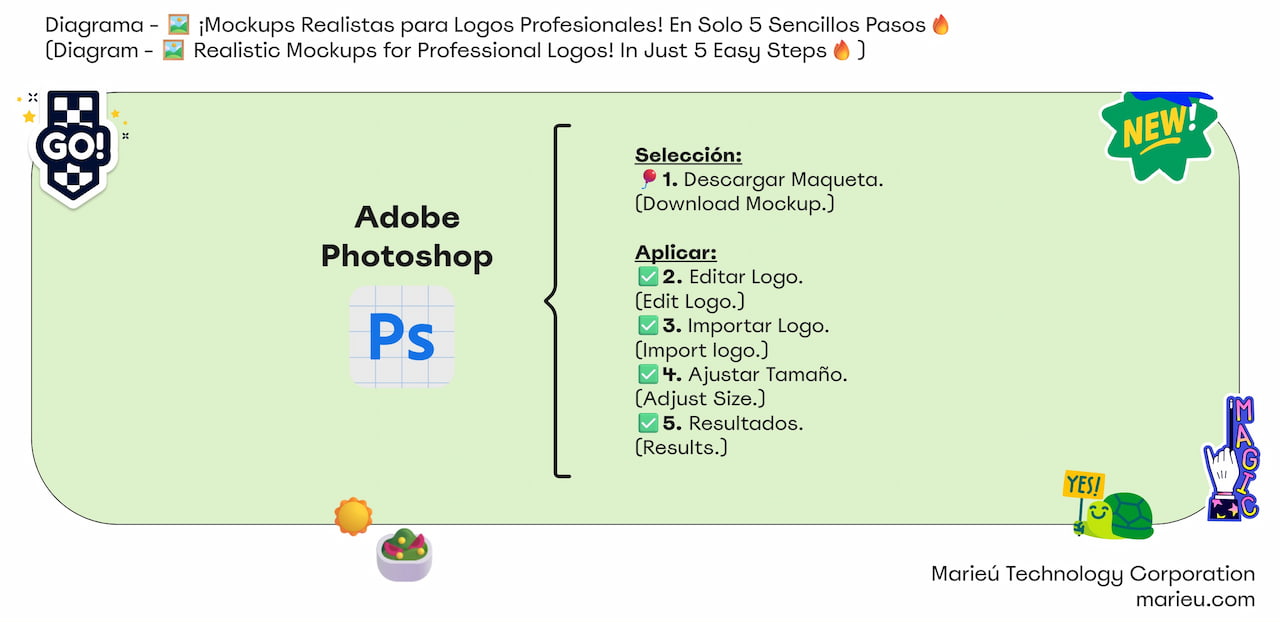
Diagram: Realistic Mockups for Professional Logos!
Source: Author’s Own Work, via Miro.
So, here we already have the mockups; we have selected two. In both cases, we will leave them in the description so you can download and practice with them. This is the first round, dark-colored sign. And, in this case, it is a square sign with a green background; we are going to download it.
Once we download it, right-click on the ZIP format and decompress it. Click “Extract to folder name.”
So, it extracts here, and here we have our project folder. We always recommend here, since we downloaded this mockup, we copy the name, go here, and change it—there it is! The purpose is to recognize later that this project belongs to that design. We select it, and we get a macOS folder, we have another which is the help, FAQs (some questions and answers), and finally, we have the project in .PSD format.
.PSD is the Photoshop file; we open it, and it comes up like this. We always recommend initially identifying each of the layers. For example, the first layer is the visual effect; it is the light reflecting from the upper right part onto the sign. If we remove the first one, we see how the light effect is removed, so we select it.
Let’s go with the second one; the second is to change the text, or in this case, it would be our logo. If we remove it, we see how it disappears, and finally, the third layer is the background—there it is! So, we are going to add our logo here; for that, we are going to edit our logo.
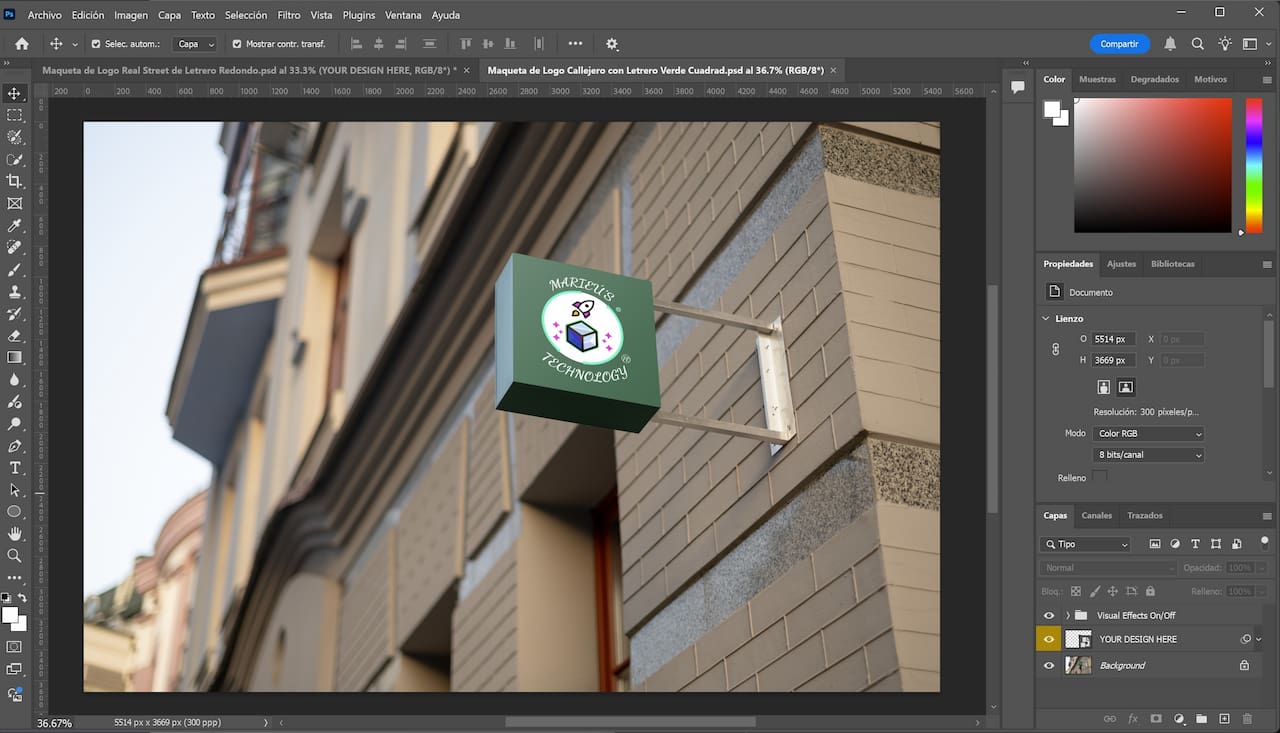 Green Square Sign Mockup with Professional Logo.
Source: Author’s Own Work, via Photoshop.
Here we have our Marieú Corp. logo, and it is within the Adobe Illustrator tool. Remember that we are also offering our professional logo services. We are currently offering up to a 50% discount. Write to us via WhatsApp, and Marieú will attend to you to provide more details about the service.
So, once we have it there, we can now pass it to Photoshop. In Photoshop, we can make the modifications to import it into the mockup.
If you don’t want any modification, you can pass it directly. We simply copy here, double-click on the smart object, OK, and here. So, this is where we are going to change it. We have the text layer again, and we have the dark background here. If we want to paste it, we simply remove the text here, and paste it right on top.
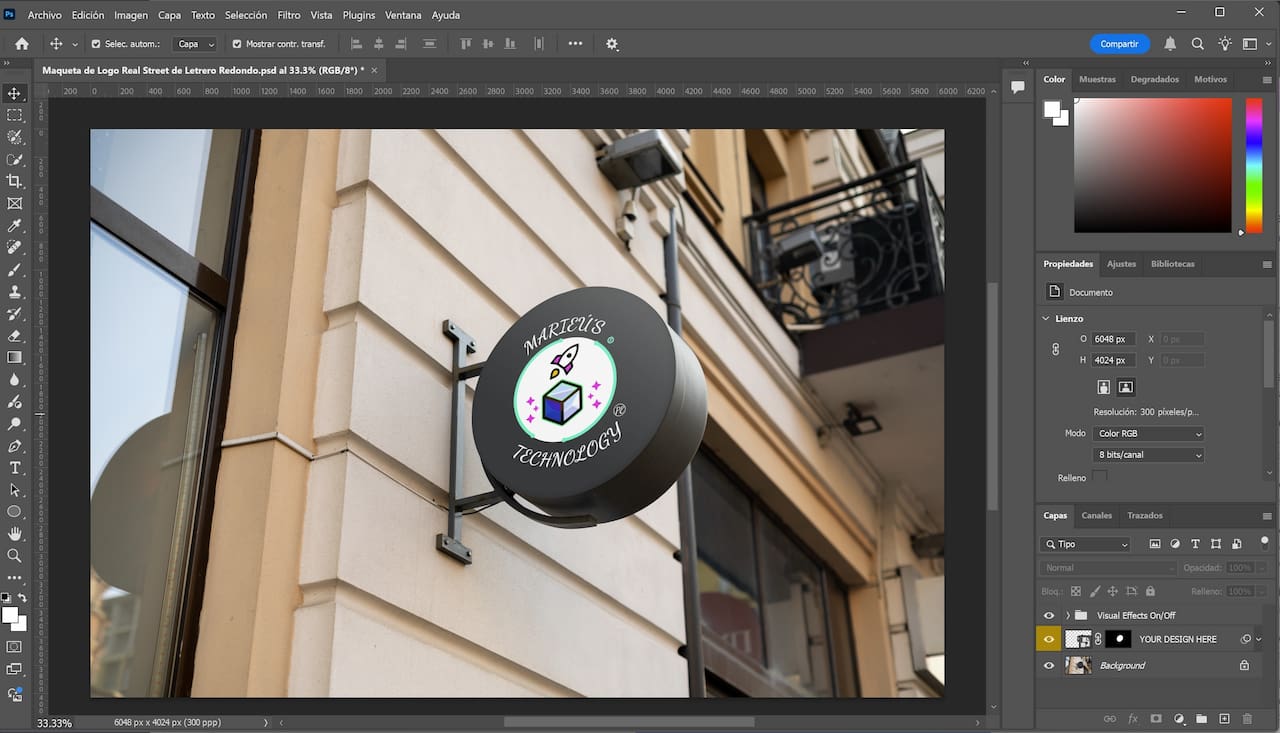
Black Circular Sign Mockup with Professional Logo.
Source: Author’s Own Work, via Photoshop.
Since the mockup is a circular sign, it is recommended that the texts have a curve, both at the top and at the bottom. For the other sign, in the case of the square sign, we can give it a horizontal text orientation. So, here we select the text and press Ctrl + T. With that, we can now give it an angle with this arc option.
If we don’t want to give it an arc, we remove it to zero—there it is! And with that, we would have to lower it. When we pass it, we recommend in this case copying all the layers of your logo, Ctrl + E, group all the layers into one, Ctrl + C, and we can paste it here. For that, double-click, paste it here, and there we see how our logo was pasted. Then, we press Ctrl + S to save, and there we have the results.
If we see that it is too small, very reduced, we can increase the scale. How do we do it? Same logo, Ctrl + T, and we start to scale up a little more—there it is! We click “Done,” Ctrl + S, and it increases a little more.
We have other designs; we have tried to shift the text, and we have it at the bottom. If we press Ctrl + S, it would look like this. We can also change it. In this case, we see how, both above and below, we have given it an arc, and it would look as follows—there it is!
Final Results
Remember that this is with the square sign, green background, and here we have the dark background. For both mockups, we will leave them in the description so you can download them and practice.
So, with this, when we have a final version of our logo and want to present it to our client, we can share our mockup with their logo, and with that, we have a more realistic look. Done! Thank you, friends of Marieú Technology Corporation!

THE AUTHOR
Daniel Alejandro Montoya Godenzi
Alejandro, holding a Master’s degree in Administration and Project Management and a Mechatronics Engineer, has experience in digital technology projects. He is part of the Marieú Technology Corporation team. In his free time, he enjoys creating new projects, reading a book, or watching a series.