Hello friends at Marieú Technology Corporation, if you are looking to customize your YouTube channel to stand out, this 6-step guide is for you! Your channel’s visual identity and structure are the ultimate magnet that converts curious visitors into a loyal audience.
We will show you how to configure the banner, logo, watermark, trailer, and playlists—key elements for user retention. Follow these steps and watch your channel not only look professional but also function as a growth machine.
How to start to Customize YouTube Channel in 6 Key Steps with Marieú?
To efficiently customize YouTube channel, we will create a banner. This banner is the image that appears at the top of your channel. As step number two, we will proceed to create the logo and add a name to your channel.
After that, we will look at the handle and social media links. This handle is very important because when a follower wants to mention you, they can enter @ followed by the handle name or your brand name, and it notifies you that a follower is mentioning you in their videos. Additionally, if you have social media like Facebook, Instagram, TikTok, among others, you can include them on your channel.
Number four, we will look at the watermark. This watermark appears in the lower right corner of your video, and you can add your logo as a watermark on your videos.
Number five, we will look at the trailer and featured video. The trailer works every time a new user wants to subscribe; a trailer video or summary of all the content you create on your channel appears for them. And the featured video, which is the first video that appears on the homepage, works for recurring subscribers.
These are users who have subscribed to your channel and return again to view your content, perhaps the latest videos you have uploaded, and it can be viewed on the home tab. The trailer is for new subscribers, and the featured video is for those who are already subscribers. Finally, we will look at playlists and descriptions. They help user retention within your channel. When you customize YouTube channel this way, you can increase your subscribers even more.

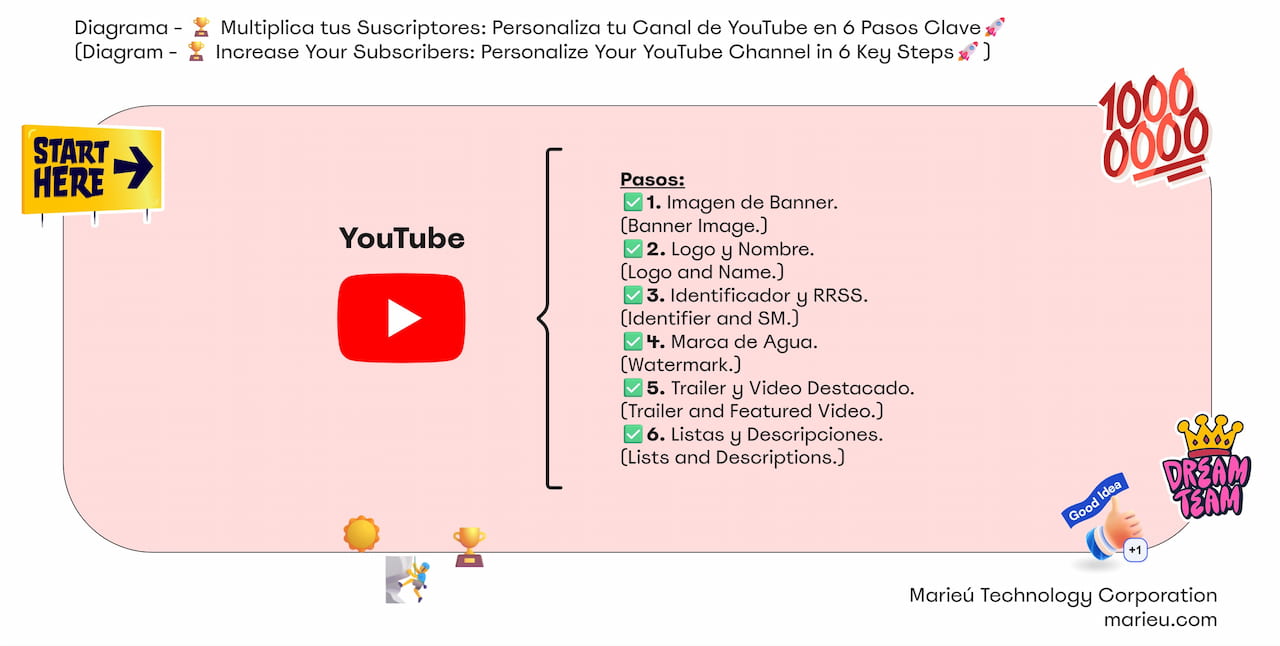
Diagram: Customize Your YouTube Channel in 6 Key Steps!
Source: Author’s Own Work, via Miro.
So, for example, here we are inside the Marieú Corp channel. If we want to customize YouTube channel from scratch, we have two options. The first is to Customize Channel. The second is to click on our profile and go to YouTube Studio. In both cases, we will land inside this YouTube Studio platform.
To effectively customize YouTube Channel, we must go to the left section and Customization. In this case, remember that we already have a video on how to design a banner for your YouTube channel. We will leave it in the description so you can go and see it. Remember also that the banner must be adaptable to the three devices. One for a television screen or TV, the second is a laptop, and the third we have here is a cell phone or mobile version.
Remember that the maximum dimensions would be 2048 by 1152 pixels, with a maximum size of 6 MB. If we exceed these dimensions and the weight, an alert or red text will appear. We explain and detail all of that in the video on how to create a banner for your channel. In fact, if we go here, to the Videos section, we will be able to find our video on how to create a banner or header for a YouTube channel at the bottom here. It already includes all the dimensions, and remember that you can download the project within the description. So, this is the banner.
Now we will move on to the logo and name part. For the name, we simply have to be guided by the maximum measurements it offers us. In this case, it is 98 by 98 pixels and a maximum size of 4 MB. In this case, it recommends using a .PNG file or a non-animated GIF file. When we have those dimensions, we upload it, and that logo is the one that appears here. In fact, when we also open a video, the logo appears below the video title; it is the one here.
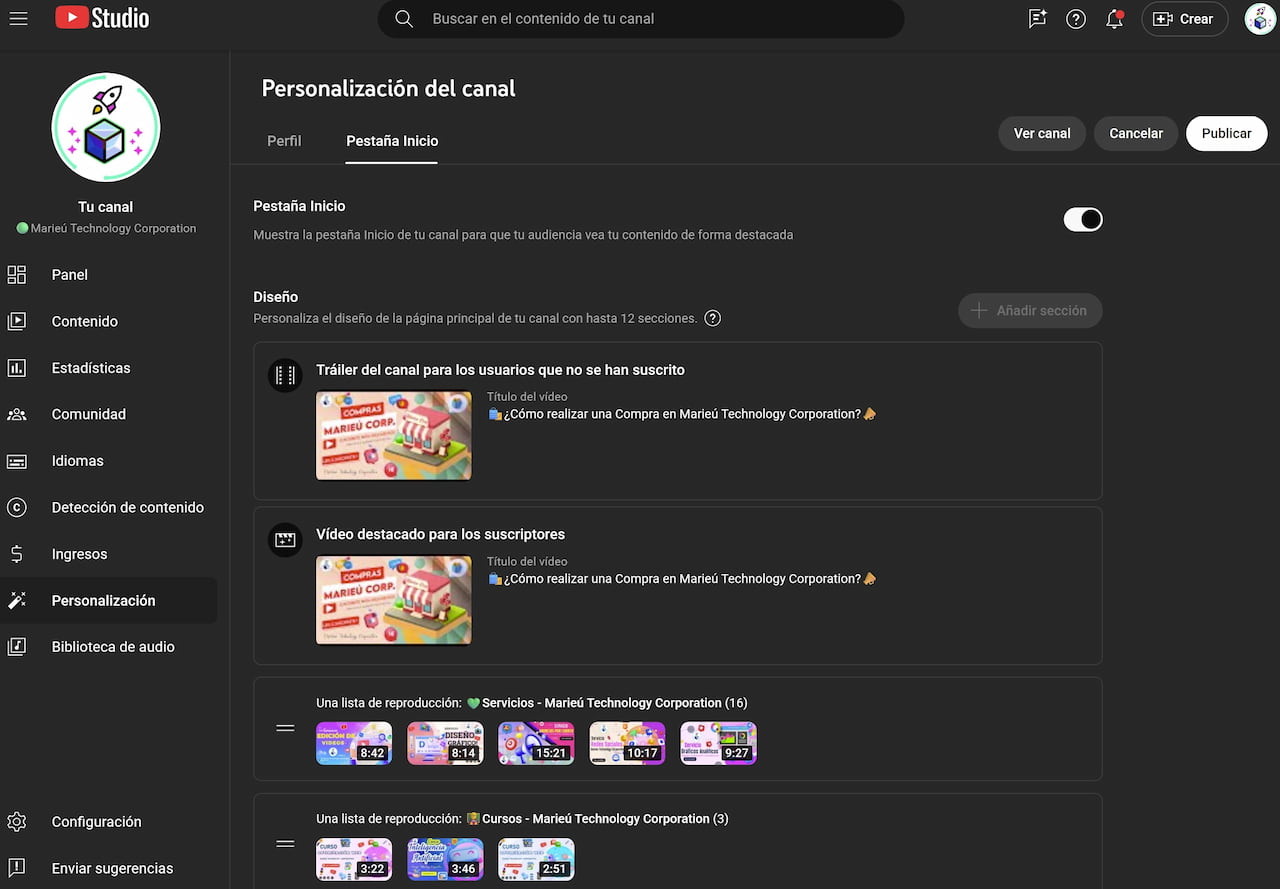 How to Add Trailer and Featured Video on YouTube?
Source: Author’s Own Work, via YouTube.
Now we will move on to the handle. We have this handle here. It is the name of our business, brand, or profile. Remember that this name is the one here, and also every time we view a video, we can have the name below the title. It is worth noting that we can change this name twice within a 14-day period. The idea is to avoid constantly modifying it. For this, we recommend planning well what our name will be that will identify us as the brand or profile of our channel.
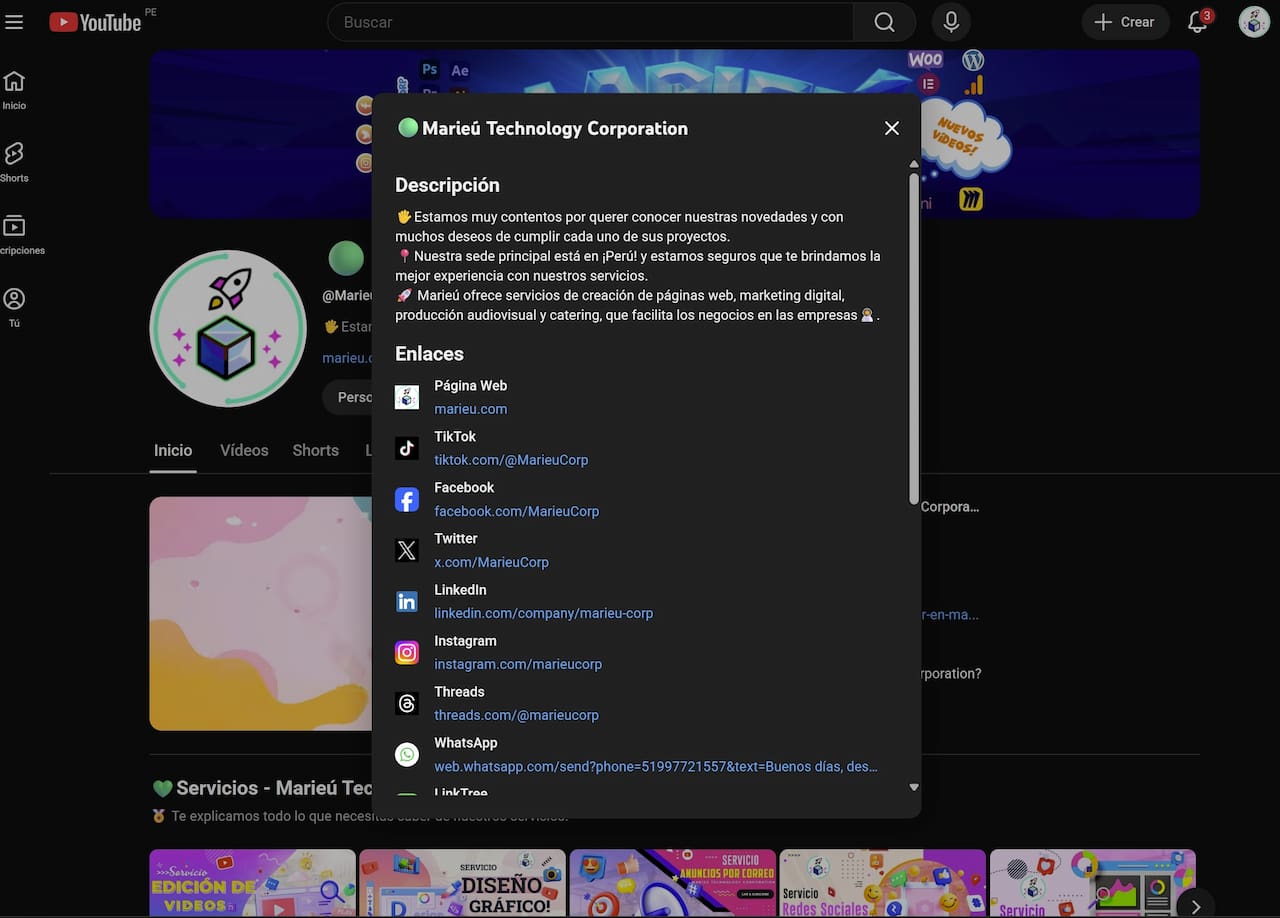
After the handle, we have social media links. The part here is a small description that we can add about our channel. If we open it here, click here, learn more details about the business, and there we can read much more about the business. That is the description.
Further down, if our target audience reaches different languages, we can add it here, translating both the description and the channel name. If it is generic, we can keep the same name, but we do recommend translating the description. Further down we have the social media links. If it is a website, we put Website and the URL of our website marieu.com.
If we have a social network, for example, TikTok, Facebook, Twitter or X, we can place the direct links to our social media. For example, we have already included it here, and if we want to see what it would look like, we click More, and our social media links are there. So, when the user clicks on the social media link, they will be directed to our Marieú Corp social network.
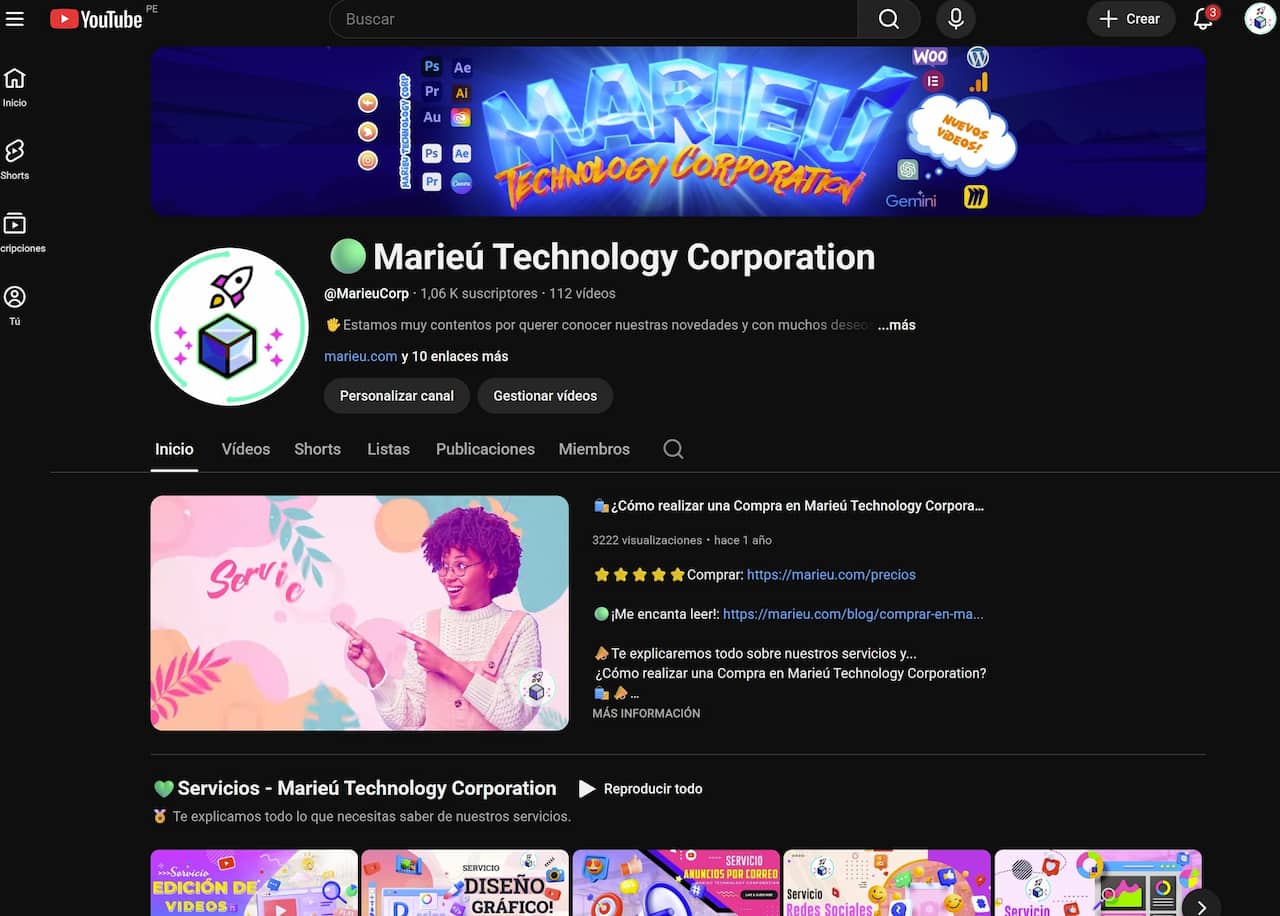
How to Add Banner Image on YouTube?
Source: Author’s Own Work, via YouTube.
Now we will move further down to the watermark part. This watermark is always in the bottom right. In this case, we recommend a square image, with maximum dimensions of 150 by 150, which would be a square image, and then we can include our logo internally—there it is! We can choose to show it only at the end, at the beginning of our video, or throughout the entire video.
In this case, we recommend it be throughout the entire video so that if the user wants to subscribe and can identify our brand more easily, they have our logo at all times. How would it appear in the video? There it is. Every time your video progresses, our logo would appear at all times. That is, an additional benefit of this watermark is that if the user selects it, they will be able to subscribe to your channel.
Now we will move on to the trailer and featured video part. For that, we will go to the Home tab and here we have the videos. In this case, we have placed the same one. It is a video that represents how to make a purchase and details each of the services and courses we have.
So, how can we add it? In an initial stage. We simply activate it here, it would be deactivated, we activate it, and here we can already add these videos. This section allows us a maximum of 12, and the first section would be the two videos: the trailer video and the featured video. Remember that you can select this video from your gallery.
Where to Add My Social Media to YouTube?
Source: Author’s Own Work, via YouTube.
Now we will move on to the playlists and descriptions part. Why are these lists and descriptions important? Because they help us show much more information to our leads. For example, here we have the services section, courses, everything related to web design, digital marketing, graphic design, audiovisual production. We have a catering list where Marieú is, promotions, marketing, work with us, among others. We are going to add all this within the customization settings.
So, remember that we have a maximum of 12 of these sections, of which, to add a playlist, we must go to Content. Within Content, we are going to go to Playlists. We have the Marieú Technology web design list here. If we edit it, we can already see each of the videos.
How do we create a new list? We have to go to our channel, click Videos, and here simply click the three dots Add to playlist. Here, if we want to create a new list, we click New Playlist, enter the name, and save it.
Once it has been created, we can already find it here within the playlists. We will simply edit it. We already have the title, we can improve the description. If we want to add videos, we click on Videos, and all those videos that we are adding within these three dots are added here. Add to the production list. We select the list and done!
Final Results
By learning to customize YouTube channel correctly, everything is gradually integrated and complemented, and these are the videos that appear on the homepage—there it is!
Also, we can add, for example, Marieú Corp’s own brands in the following way. These are Featured Channels. We can search for a YouTube channel here, where we can also add the channels that are from the same brand, from the same company, so that the user feels more confident. When you finally customize YouTube channel, you gain trust. Done, thanks friends at Marieú Technology Corporation!

THE AUTHOR
Daniel Alejandro Montoya Godenzi
Alejandro, holding a Master’s degree in Administration and Project Management and a Mechatronics Engineer, has experience in digital technology projects. He is part of the Marieú Technology Corporation team. In his free time, he enjoys creating new projects, reading a book, or watching a series.