
Hello friends of Marieú Technology Corporation, can you imagine a WordPress so fast that you don’t lose a single visitor? Discover how to accelerate your site to 100% in just 4 steps. Object caching is the solution that optimizes your website’s database, making information load instantly for an unbeatable experience.
With Marieú Corp., we will guide you step-by-step to implement this powerful technique that will make your website fly. With this optimization, you will not only see a drastic improvement in loading times, but you will also boost your SEO and user satisfaction.
How to Speed Up WordPress to 100% with Object Caching?
Here we have a small diagram; we will start with the explanation of the practical case. Remember, how does this lack of object caching appear? In the following way. When you enter WordPress, check “Site Health.” Inside Site Health, you will get the full analysis of your website.
Remember that this is in the final stage, when we already have the entire layout completed; afterward, it’s time to optimize our site or website.
So, one of the errors, for example, that we have within WordPress is: “You should use a persistent object cache.” If we use LiteSpeed Cache, it is not necessary to install another external plugin for object caching, be careful, because it already includes this persistent object cache.
In the case of WP Rocket, and in the case of W3 Total Cache, we also need to install a separate object cache. Now, how will the message appear? As follows. It is affecting performance; it indicates that we should use a persistent object cache.

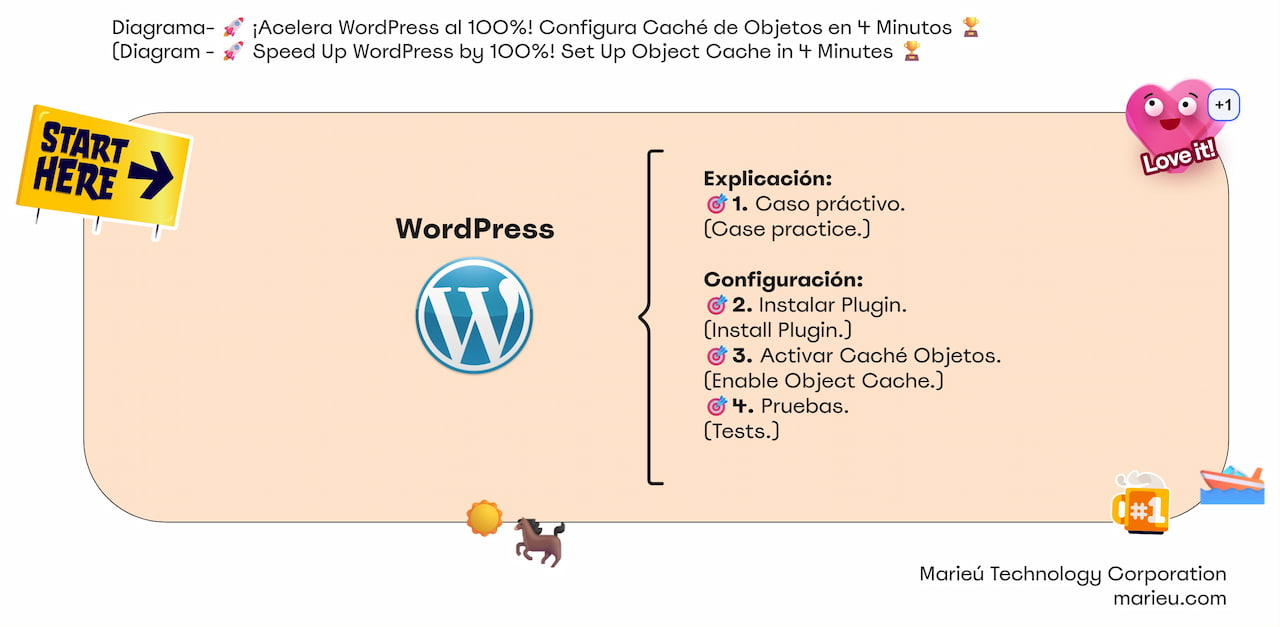
Diagram: Speed Up WordPress to 100%! Configure Object Cache.
Source: Author’s Own Work, via Miro.
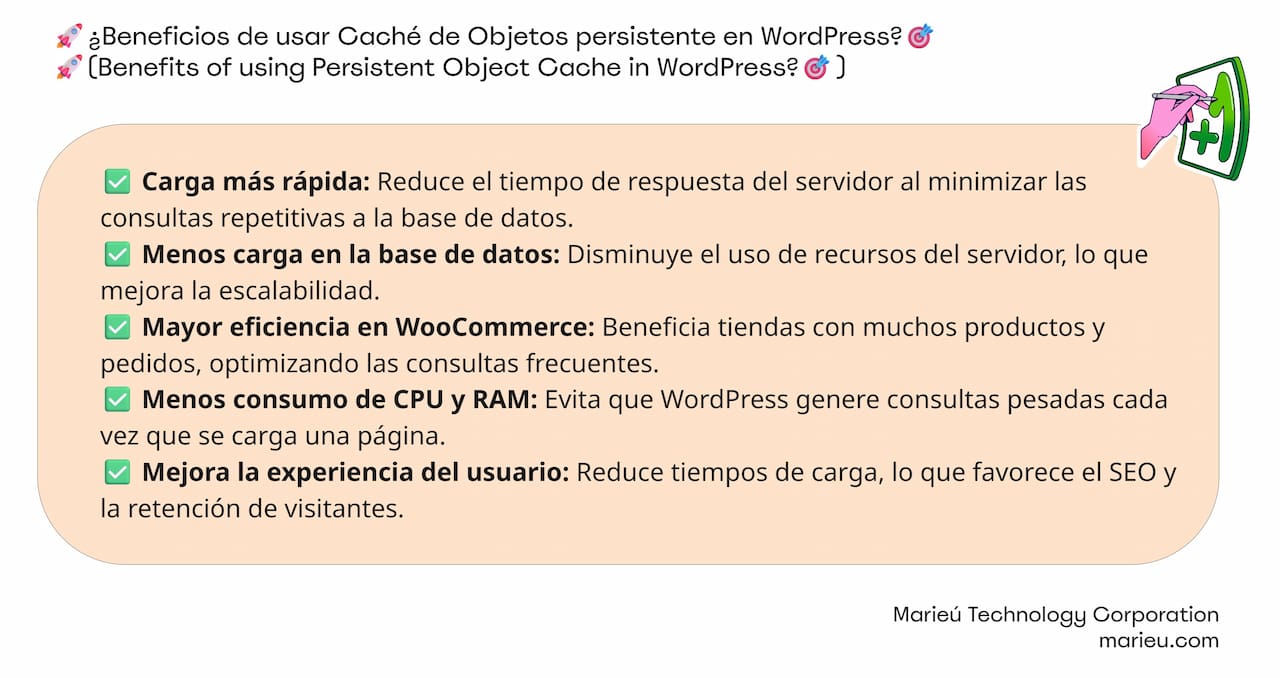
Or perhaps you ask us, why is this object cache important? We have it here. It helps a lot in the faster loading of our website, which corresponds to reducing the time it takes for your images, background images, menu, among others, to appear. It reduces this time and makes the loading much faster. Also, less database load.
Remember that our website is also made up of a database. That database has to make queries, and these queries, with this persistent object cache, will be made less frequently. Greater WooCommerce efficiency; if we use WooCommerce in our virtual store or e-commerce, it will also help us with this efficiency, mainly in AJAX.
Benefits of using Persistent Object Cache in WordPress?
Source: Author’s Own Work, via Miro.
Remember that every time we add a product to the cart, the cart is constantly updated. So, this, for the frequent queries of our products, will help us a lot with that efficiency; it will be much faster.
Less CPU and RAM consumption. Remember that every time we buy a hosting package, we receive the amount of RAM that is in our plan. With this plugin, we will optimize consumption less. And finally, it improves the user experience, reduces loading times, which favors SEO and visitor retention.
Let’s say, if a page does not have good web optimization, it takes a long time to load, the client obviously leaves the page and goes to another page to check. We don’t want that, which is why this plugin will help us a lot.
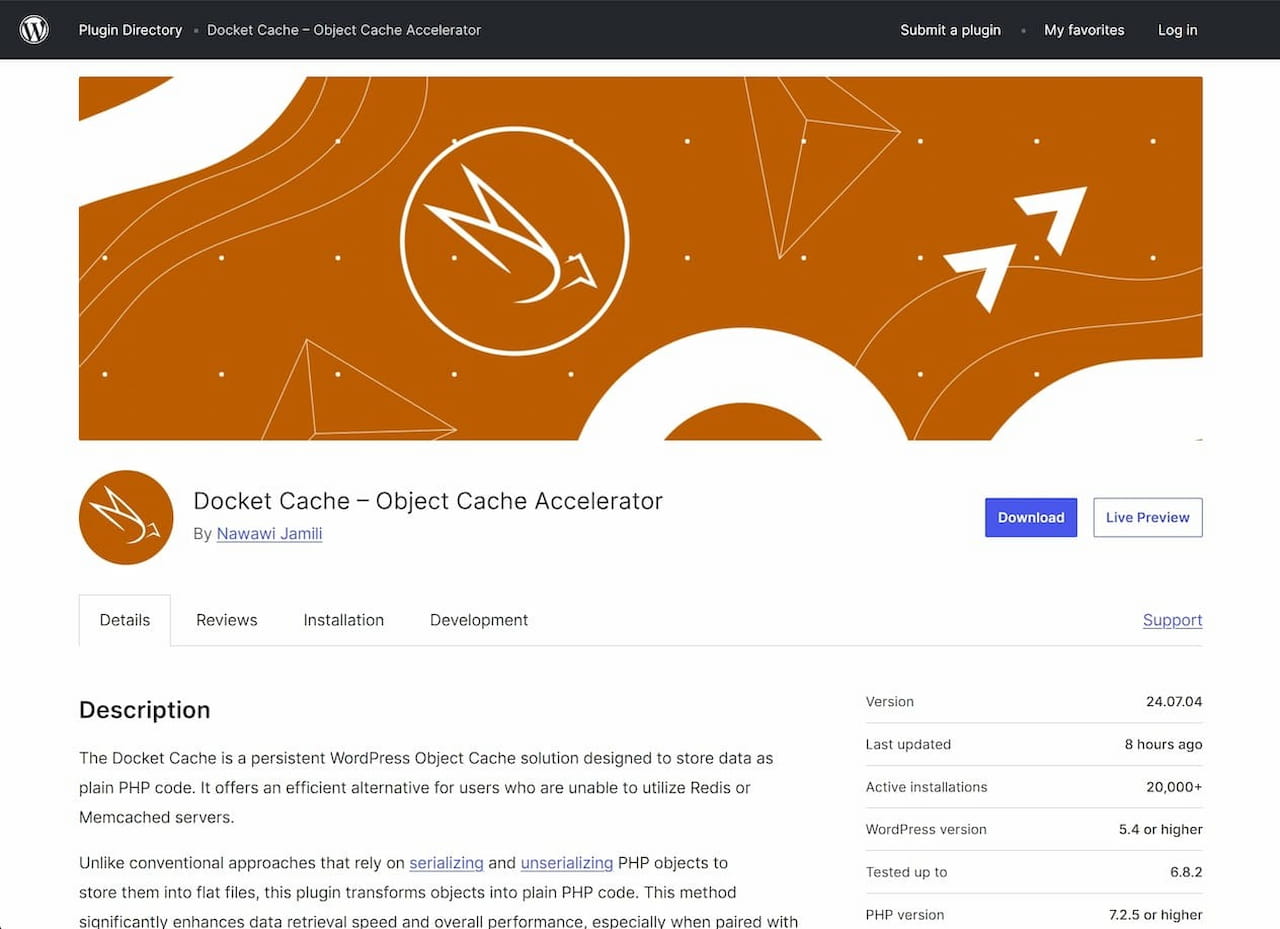 Where to download Persistent Object Cache plugin in WordPress?
Source: Author’s Own Work, via WordPress.
So, what are the steps we are going to apply to activate this persistent object cache? We are going to install the plugin; it is super simple. We are going to do it within WordPress and we are going to activate the configuration for this object cache. We will conclude with the tests.
So, the plugin we are going to install is called Docket Cache and it’s by Nawawi Jamili. It is always good to check it because sometimes there are duplicates and the developer is not the same, okay, so we always have to check that. It also has some reviews; we see that yes, it is correct, it mostly has five-star reviews.
Now let’s go into WordPress. So, here we are inside WordPress, within the Marieú Corp. test environment. We are going to go to the plugins section, we are going to add a new plugin, and we are going to type Docket Cache here. The first option is the one we are going to install, it is this one.
We currently have it installed, which is why it appears like this. In your case, you simply click “Install Now” and then activate it. How do we validate the error before installing Docket Cache? We go to Tools and click Site Health. We wait a while here, and the performance error, the persistent object cache, comes up here—there it is!
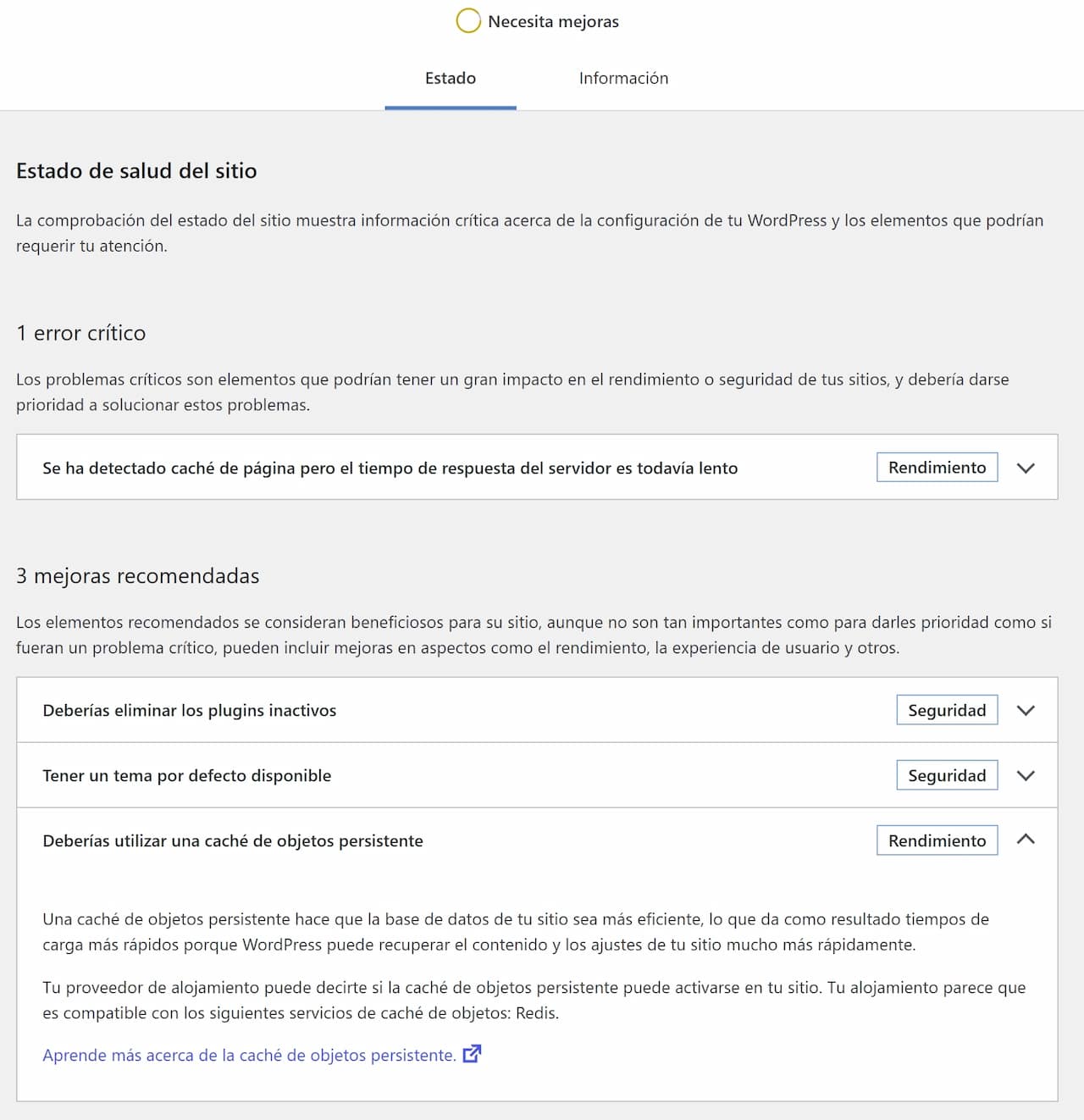
Site Health Status – You should use a Persistent Object Cache.
Source: Author’s Own Work, via WordPress.
Once we have installed the plugin, we activate it. We are going to go here to “Plugin.” Here we have it; we are going to activate it. A Docket Cache section automatically activates on the left side. And here we have three tabs: the overview, the cronbot, and the configuration. We are only going to modify the overview; we leave the rest of the configuration by default.
So, we have three options. The first is to remove all object cache. When it is active, after a week, after two weeks, if we want to make modifications or changes, we can clean it here, and the object cache starts from scratch again.
The second action we have is Zend OPcache. OPcache also helps a lot with PHP extension, so that it is not sending and analyzing the scripts again. So, this OPcache is optimal for that.
Finally, we have the Object Cache. Initially, we have to activate it; we activate it, and the persistent object cache would be active on our website.
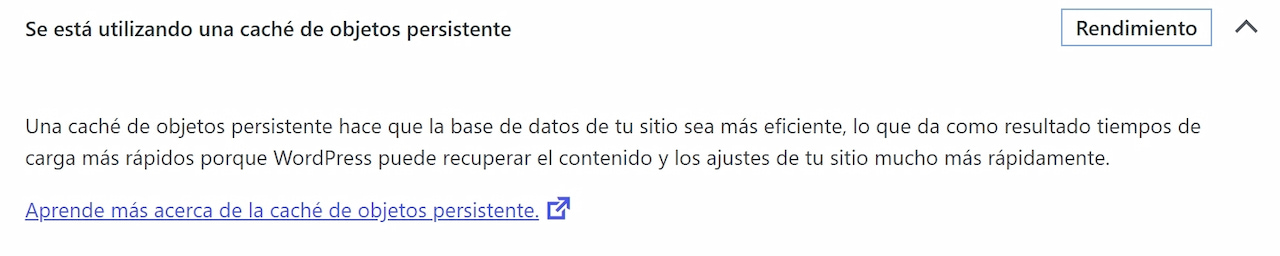
After configuring the Persistent Object Cache plugin in WordPress.
Source: Author’s Own Work, via WordPress.
Next is the Configuration of the Persistent Object Cache plugin in WordPress. Source: Own Work, via WordPress. So, once we have activated it, for example, we have it active here. We go to Tools, and in Tools, we click Site Health. Again here, remember to also clean and preload the cache before. If we use another plugin, we also clean the cache and wait for it to finish analyzing.
Here, for example, it has already finished; it needs improvements, yes, but not related to object caching anymore. If we open “Completed Tests” here, the object cache would be within the “Approved” section.
Final Results
Finally, friends of Marieú Corp., if you want something more complete, perhaps to optimize your website to 100%, besides this object cache, we recommend taking the Marieú Corp. web optimization course. In it, we teach you how to optimize your WordPress to 100%. You can optimize the fonts, CSS, and JavaScript.
Also, all the quantity of images, how we can make them load quickly when the user enters your website. Remember that this also goes hand in hand with our hosting, keeping plugins updated, among others. We explain everything in the web optimization course. Done! Thank you, friends of Marieú Technology Corporation!

THE AUTHOR
Daniel Alejandro Montoya Godenzi
Alejandro, holding a Master’s degree in Administration and Project Management and a Mechatronics Engineer, has experience in digital technology projects. He is part of the Marieú Technology Corporation team. In his free time, he enjoys creating new projects, reading a book, or watching a series.