
Hello friends from Marieú Technology Corporation, here is the best strategy to fix slow loading in elementor, with a step-by-step video! Indeed, in this guide, you will learn how to prevent slow loading in elementor web editor. Specifically, we will use Elementor Shortcode and templates for our optimization in WordPress.
Elementor is a web page builder. It allows you to create and design web pages using predefined templates, widgets, or blocks. The Elementor plugin is installed via WordPress, where you will find a free version and a paid version, the latter offering more widgets and templates.
What is the Best Strategy to Fix Slow Loading in Elementor?
So friends, here we have a diagram to speed up an Elementor website. We are going to work within WordPress and the Elementor plugin. Some before-and-after features are shown below.
So, within the Prices page, we looked at the “Navigator” and saw that it has many widgets. In this case: headings, text editors, Lotties, images, among others. When we start increasing the number of widgets within a column—be it our main page, services, prices, studies, or contacts—it becomes overloaded. And now, if we add some complements or plugins like Yoast or Rank Math, it will become even slower, causing slow loading in elementor. So, how do we solve this error? What would be the final result of applying the recommendations we provide? We have it here.
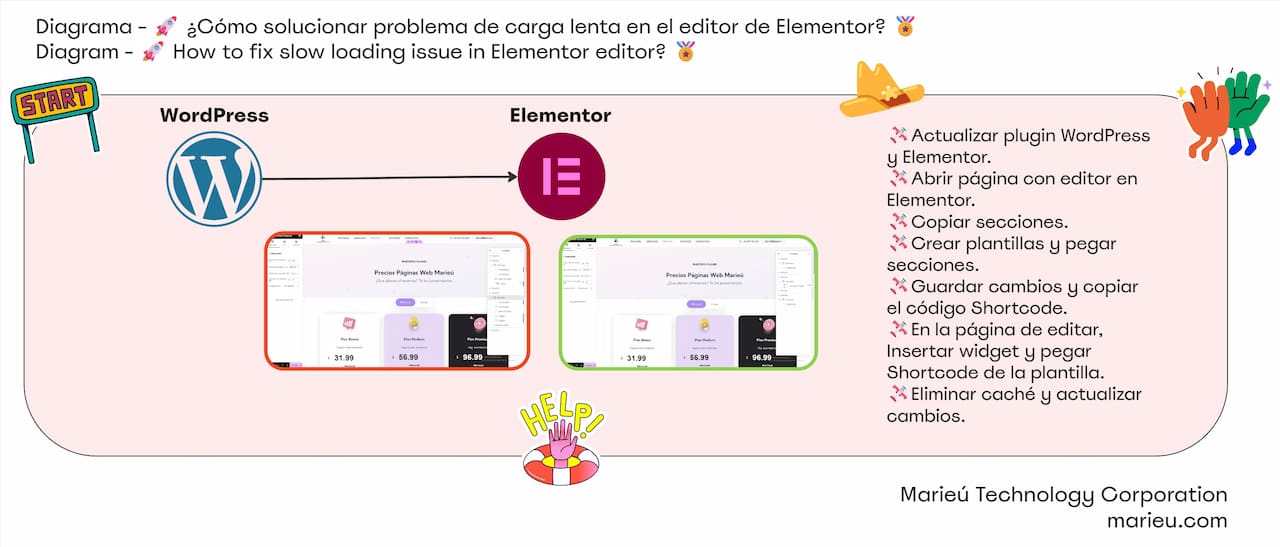
Diagram: Solving Slow Loading in Elementor Editor.
Source: Author’s Own Work, via Miro software.
We already have the sections; we are on the same Prices page, and we are going to work with Elementor Shortcode. So, for each of the sections, we enter a column, and finally, an Elementor Shortcode is inserted. We have an “Advanced Toggle” option, which is much more fluid than including the tables directly here. So, it is advisable to use at least “Shortcode” and “Advanced Toggle.” So, what steps will we take to get to these “Shortcode” and “Advanced Toggle” solutions?
Before starting to optimize Elementor sections, we must always update the WordPress and Elementor plugins, because we might have a version that generates errors. Remember that updates always contain improvements. So, in this case, it is recommended to update the WordPress and Elementor plugins. Number two, we open the page with the Elementor editor. The page where we want the loading to be much faster.
So, number two, we open the page with the Elementor editor. This will be the page that we want to avoid slow loading in elementor. Number three, we copy the sections. Remember, if we have the sections, here! We copy the sections and will create Elementor templates and paste the sections. We exit that page, go to Templates, create a template, and copy the sections. It is recommended to use one template for each of these sections. We save the changes and copy the Elementor Shortcode code.
Every time a template is created and sections are pasted, an Elementor Shortcode code is automatically generated. Then, on the edit page, we insert the widget. On the edit page, in this case, the Prices page, we insert the widget and paste the shortcode of the template—there it is! And finally, clear the cache and update the changes, so we can see the results.
Here we are in WordPress. We are going to go to Pages, open Pages, and here! we are going to focus on our Prices page, “Web Page Prices.” Done, we click “Edit with Elementor.” Once we have the Elementor editor page open, we are going to identify sections. We have the Header part. The second section would be the heading part. The third, the Plans part, is already in the body. There are the plans: Monthly and Annual. Remember this is the Marieú Web Page Prices Service.
So, we have three plans in the monthly period and also three plans in the annual period. For the monthly period, there is a Basic Plan, a Medium Plan, and a Premium Plan. In the first case, it is a standard web page, where there is only one page divided into several sections, so the company can offer all its services. In the Medium Plan page, there are several pages that can be classified, perhaps by main services, contacts, prices, among others. And finally, the Premium Plan, where we offer an e-commerce page, which is a virtual store page.
Then, we have identified another section. These sections are for FAQs (Frequently Asked Questions), the questions and answers—there they are! And finally, the Footer section. So, once we have identified each of these sections, we are going to move them from the page sections to the “Templates.” So, once here, we are going to go to Templates and create “Add New.” We are going to add two, okay? Why? Remember that we already had a previous video where we added the Header; we have a video on adding the Header and Footer as an Elementor Shortcode.
So, on that side, we are not going to optimize it anymore; it is already optimized. The same with the section for the tables, which is also optimized. An “Advanced Toggle” is added, and in this case, it is no longer necessary to optimize it. We are going to focus, then, on two sections: the Heading section and the FAQs section. So, that would be two templates.
Now, to improve Elementor performance, we are going to add a new template. We select “Page” and enter the name of the template: “Web Page Prices Header.” We create the template. Once the editor has finished loading, we paste the section we copied here. We copy the Header section and paste it here. And the same will be done with the FAQs section. Right-click, copy, and we are going to create another template. “Page” and we paste the name, and we name it: “Web Page Prices FAQs.” We create the template.
Once the editor has finished loading, we are going to paste the section, and there it is! For both cases, we have to continue optimizing. We are going to deploy the section a little, and there we have all the content. So, now what we are going to do is optimize the section first, and then we are going to go down to the column. We select the section and go to “Advanced.” In “Advanced,” we are going to deactivate the margin and reactivate it. Also, the padding here.
We do not want them to have any limitations, both above and below, but to start by default at zero. We deactivate and reactivate, put zero, and save the changes. Now we go to the column, go to “Advanced,” and something similar: deactivate and activate, also the padding—done! In the case of “Layout,” we want the alignment to be default. Something similar with horizontal alignment: default. We are also going to do it with the headings. We have two headings, a text editor, and a Lottie.
So, for these four contents, the same will be done as for the section and the column. We select the heading, go to “Advanced,” deactivate and reactivate. The same for the second heading, and for the Lottie as well: we deactivate it and reactivate it. At this stage, remember to update the changes. We are going to click “Publish.” If we get a “405 error,” in this case, we recommend the following. We go to WordPress and purge everything or clear the cache. We publish again. Remember to save changes, we publish—done!
Now, we are going to optimize Elementor in the FAQs. We have the section, a column, and the content. We have two headings, a text editor, and two images. Internally, in the column, we have an inner section, which corresponds to the questions and answers. And if we deploy more, we will find that it is an “Accordion.” For each question, the answer unfolds; for each question, the answer is shown—done!
So, we select the section first and optimize. We deactivate, reactivate, put zero. Something similar here—done! Now we go with the column, “Advanced,” deactivate, reactivate, deactivate, and reactivate, put zero. So, with the two headings, the text editor, and the two images, similarly, we go to the heading, deactivate and reactivate, put zero—done!
So, before moving to the inner section, we are going to increase the size of these popular questions a little. We select the heading, which is “Popular Questions,” and in the content, we are going to set the size to XL—there it is! It increases a little more. So, for the inner section, the column, and the accordion, similarly, we go to “Advanced” and select deactivate and reactivate for the margin and padding. And we set it to zero, click “Publish”—done!
To continue and speed up Elementor page loading, it says: “Your page is live.” Now, within the Templates section, refresh to be able to visualize our two pages that we have edited—there they are! We have “Web Page Prices FAQs” and “Web Page Prices Header.” An Elementor Shortcode has been generated for each of these two. We are going to insert it inside the page.
Remember that here, being inside the Marieú Web Page Prices page, we are going to include the shortcodes. So, we eliminate the heading, the text editor, and the Lottie. We are going to add a shortcode. We go to Widgets and select “Shortcode.” We select, drag, and drop, and here we are going to paste the code we copied from the template. We paste and apply.
In some cases, when we include the shortcode, you will not be able to visualize it. If you want to visualize what content we are integrating with the Elementor Shortcode from the template, we have to update the page. We update. Always remember to save the changes before updating the page. We update, and there it is! Now it shows you how it looks within the Elementor editor. You can visualize it here in the editor, or you can also do it by previewing. We select “Preview Changes,” and there it is!

After Improving Load Speed to Fix Slow Loading in Elementor.
Source: Author’s Own Work, via Elementor software.
So, we have included the shortcode within the Heading section, and now we are going to include the FAQs. Remember, we eliminate all the content of the column to be able to include the shortcode. We right-click and select “Delete,” or we select and press “Suppress.” Then, we open the Shortcode widget, select, drag, and drop. We select and drag. Remember that the shortcode must go below the first column. So, we select and move it above the “Inner Section”—there it is!
Then, we are going to paste the template code. We go to the template, which is “Web Page Prices FAQs,” copy the shortcode, and paste it here, and click “Apply.” We forgot to eliminate the inner section. We eliminate the inner section so that we only have the shortcode, and to be able to see the changes, we are going to update the page.
Final Results
As final results, after optimizing Elementor page loading, we are going to deploy the sections. We see that they are using a Elementor Shortcode. We deploy the second section, and this section is also for tables and has an “Advanced Toggle,” which extracts the table information from a cost template. The FAQs section also has the shortcode, and finally, the Footer also has a shortcode. So, having it this way is much easier to edit.
If we want to make any changes to the header or the FAQs, we go directly to the template, and it updates automatically. Let’s see the changes within “Preview Changes,” and there it is! There are the FAQs, there is the Accordion, and there is the Footer. Using this strategy effectively fixes slow loading in elementor. Done, thank you, friends from Marieú Technology Corporation!

THE AUTHOR
Daniel Alejandro Montoya Godenzi
Alejandro, holding a Master’s degree in Administration and Project Management and a Mechatronics Engineer, has experience in digital technology projects. He is part of the Marieú Technology Corporation team. In his free time, he enjoys creating new projects, reading a book, or watching a series.