
Hello friends from Marieú Technology Corporation, let’s look at the elementor z-index fix for Elementor and WordPress! Indeed, in this step-by-step guide, you will learn how to properly overlay elements on your website in Elementor and WordPress.✅
Elementor is a “page builder” for web pages. It allows you to create and design web pages using templates, widgets, or predefined blocks. The installation of the Elementor plugin is done through WordPress. There, you will find a free version and a paid version; the latter offers a greater number of widgets and templates.
How to solve the Elementor Layering Issue (Z-Index) in Elementor and WordPress?
So, here we have the architecture diagram. What tools or applications are we going to use? We are going to use WordPress, Elementor, and within Elementor, the Z-Index option. Within Elementor, we are going to work with sections. We will locate the header to check the menu, point number one. Point number 2, we are going to fix this bug within the Edit Section, slash Advanced, and slash Z-Index option.
Point number 3, we will work in responsive mode, specifically mobile version. Remember that the menu problem, in this case, is in the mobile version, not the desktop version. Now, if we look a little into Z-Index, it specifies the stacking order of elements. That is, if we have three or five layers, by means of Z-Index, we will be able to bring the surface layer forward, or push it behind the other layers.
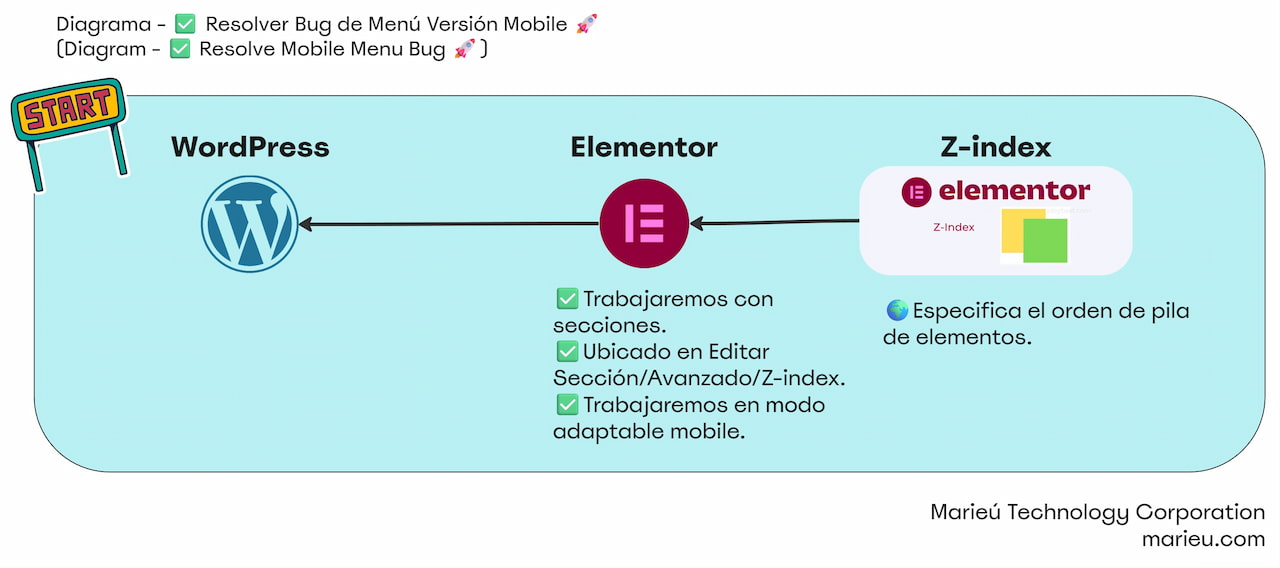
Diagram: How to Perform an Elementor Z-Index Fix?
Source: Author’s Own Work, via Miro software.
So friends, in WordPress, we are going to enter Pages. From all the pages we have, we will select Contact and enter Contact. So, once we have the Contact page open in editing mode, we are going to go into responsive mode in the mobile version. Remember we have several types of views: Desktop mode, Tablet mode, and Mobile. We select the Mobile version, and there it is! If we select the menu, we have the layering problem, the Z-Index.
This will certainly inconvenience the client a lot. If they are on the Home page, they won’t be able to navigate to another page; they will only be able to see the Home page. So, it’s a problem for the client that we must solve as soon as possible.
How do we solve the problem and understand Z-Index in web design? We are going to go to Advanced, open the Navigator, and select the first section. Once we are in the first section, we are going to go to Advanced, and in Advanced, we are going to Z-Index—there it is!
So, to achieve the elementor z-index fix, we are going to gradually increase the number, in order to see which layer value is adequate to see the menu with all the options and be able to select it. So, we raise the Z-Index—there it is! We see that some layers are disappearing; that is, Elementor Layering Issue conflicts that are left behind. If we lower it a little, we see that everything is already corrected. In fact, to avoid some problems with subsequent changes, we can set it to 10. We put 10, remember to update.
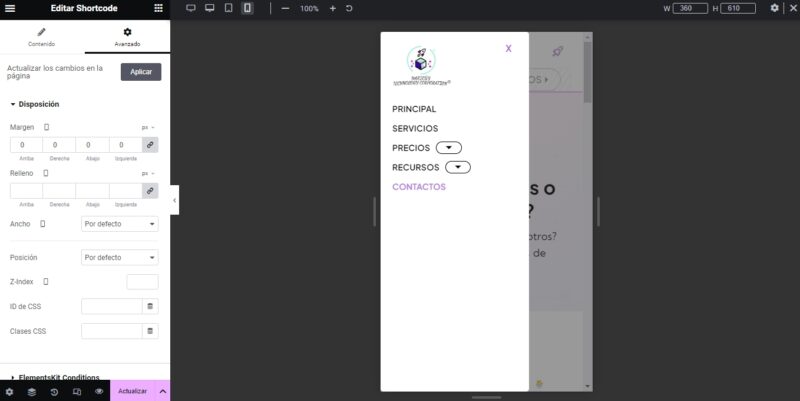
Elementor Z-Index Fix in WordPress.
Source: Author’s Own Work, via WordPress.
Final Results
Now, to validate the final results, after performing the elementor z-index fix, we are going to click “Preview” to see how it looks. So, there it is! In the preview, what we are going to do is the following: we reduce our Chrome window a bit, and there it is! The moment the icon appears to open the drop-down menu, we can validate it—very good! That’s it, thank you, friends from Marieú Technology Corporation!

THE AUTHOR
Daniel Alejandro Montoya Godenzi
Alejandro, holding a Master’s degree in Administration and Project Management and a Mechatronics Engineer, has experience in digital technology projects. He is part of the Marieú Technology Corporation team. In his free time, he enjoys creating new projects, reading a book, or watching a series.